# Support & Chat System
The chat system allows system users and storefront customers to communicate, while the support tickets enable users to bring up issues with the system.
# How to use the chat to connect with customers
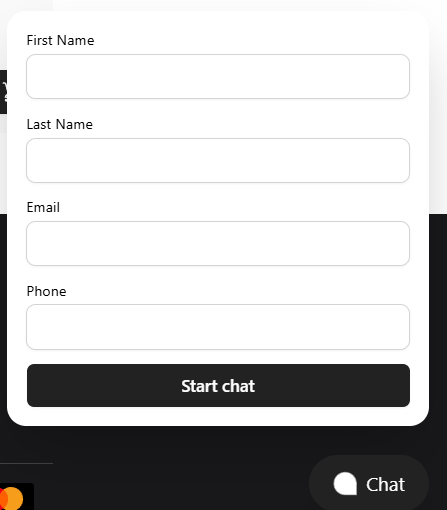
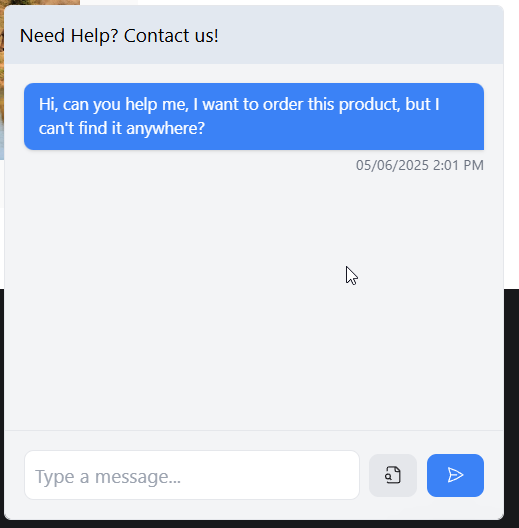
End-customers can use the ***support chat widget*** to reach out to staff members:
[](https://help.retailrelish.com/uploads/images/gallery/2025-05/image.png)
[](https://help.retailrelish.com/uploads/images/gallery/2025-05/n8himage.png)
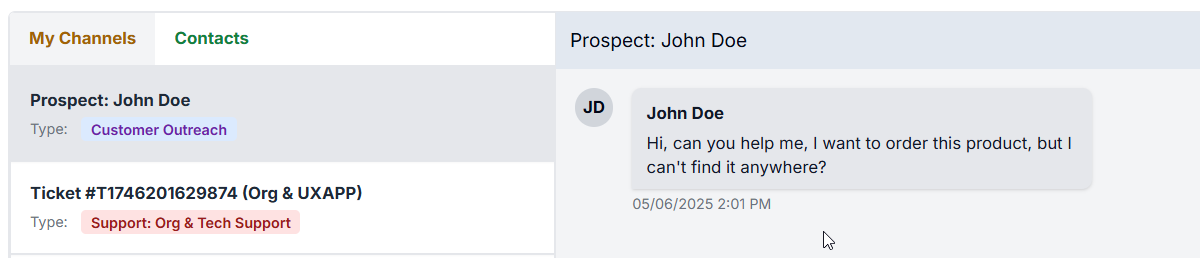
These messages will show up in the Chat system in your main dashboard, like so:
[](https://help.retailrelish.com/uploads/images/gallery/2025-05/hZAimage.png)
You can get to this page by clicking on the chat icon, in the upper right corner of the dashboard:
[](https://help.retailrelish.com/uploads/images/gallery/2025-05/e1timage.png)
#### Reach out to customers on your own
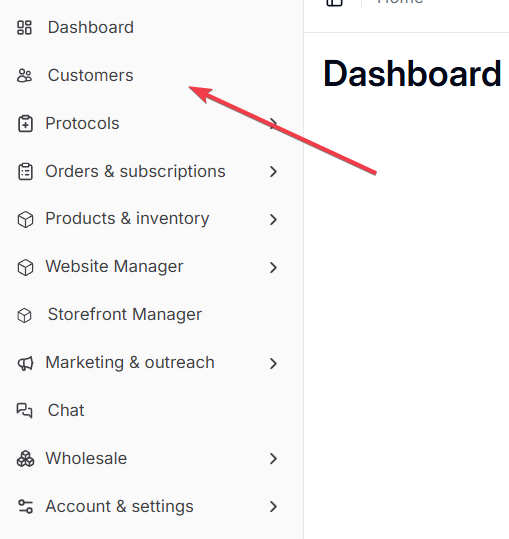
If you want to be the first one to reach out to customers you can do so by going to the list of customers:
[](https://help.retailrelish.com/uploads/images/gallery/2025-05/6Pgimage.png)
And then on the customer details page, use the "Open Conversation" button:
[](https://help.retailrelish.com/uploads/images/gallery/2025-05/Nodimage.png)
The customer will see a new message popup on the website/app if they are logged in.
If not, we will be sending them an automatic e-mail, to let them know about your message and that they can reply to it on the website/app.
# How to Submit a new Ticket
You can submit a new ticket in the dashboard, by going to the support tickets module. It is the ticket icon in the top right corner of the dashboard.
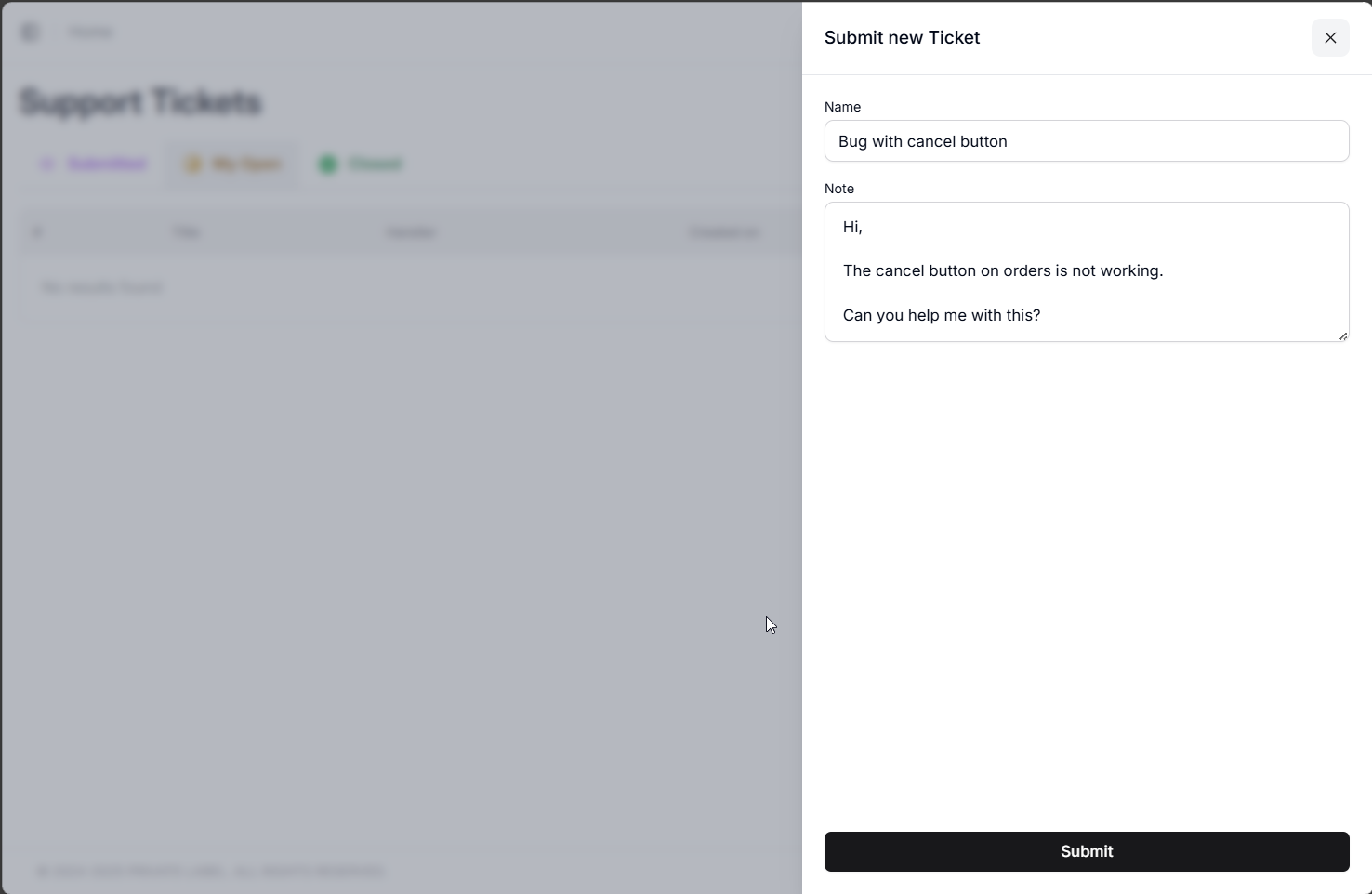
From there you can submit a new ticket:
[ ](https://help.retailrelish.com/uploads/images/gallery/2025-05/msedge-qgyh4gdujn.png)[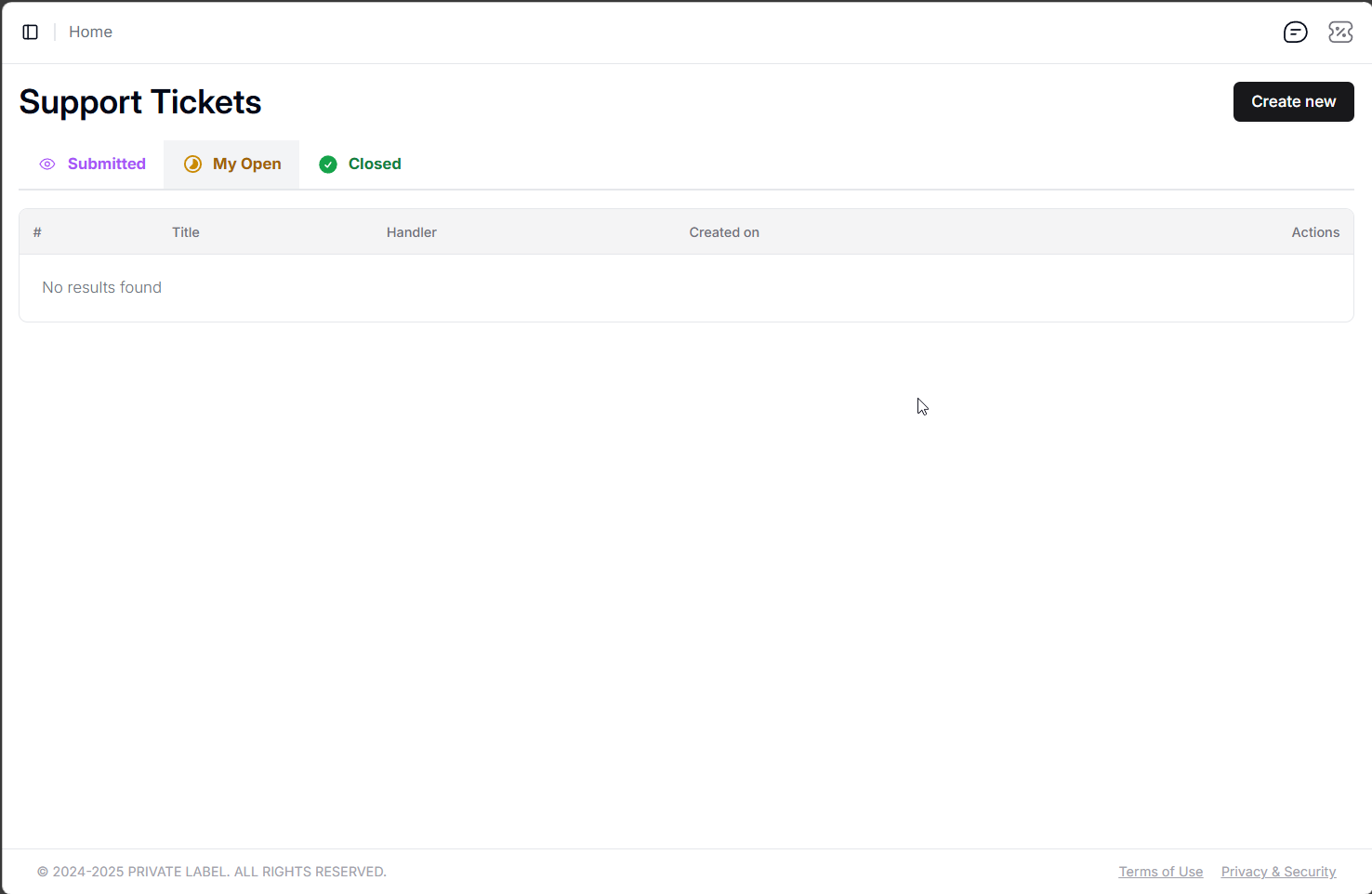](https://help.retailrelish.com/uploads/images/gallery/2025-05/msedge-bbyx7c98y2.png)
[](https://help.retailrelish.com/uploads/images/gallery/2025-05/msedge-qgyh4gdujn.png)
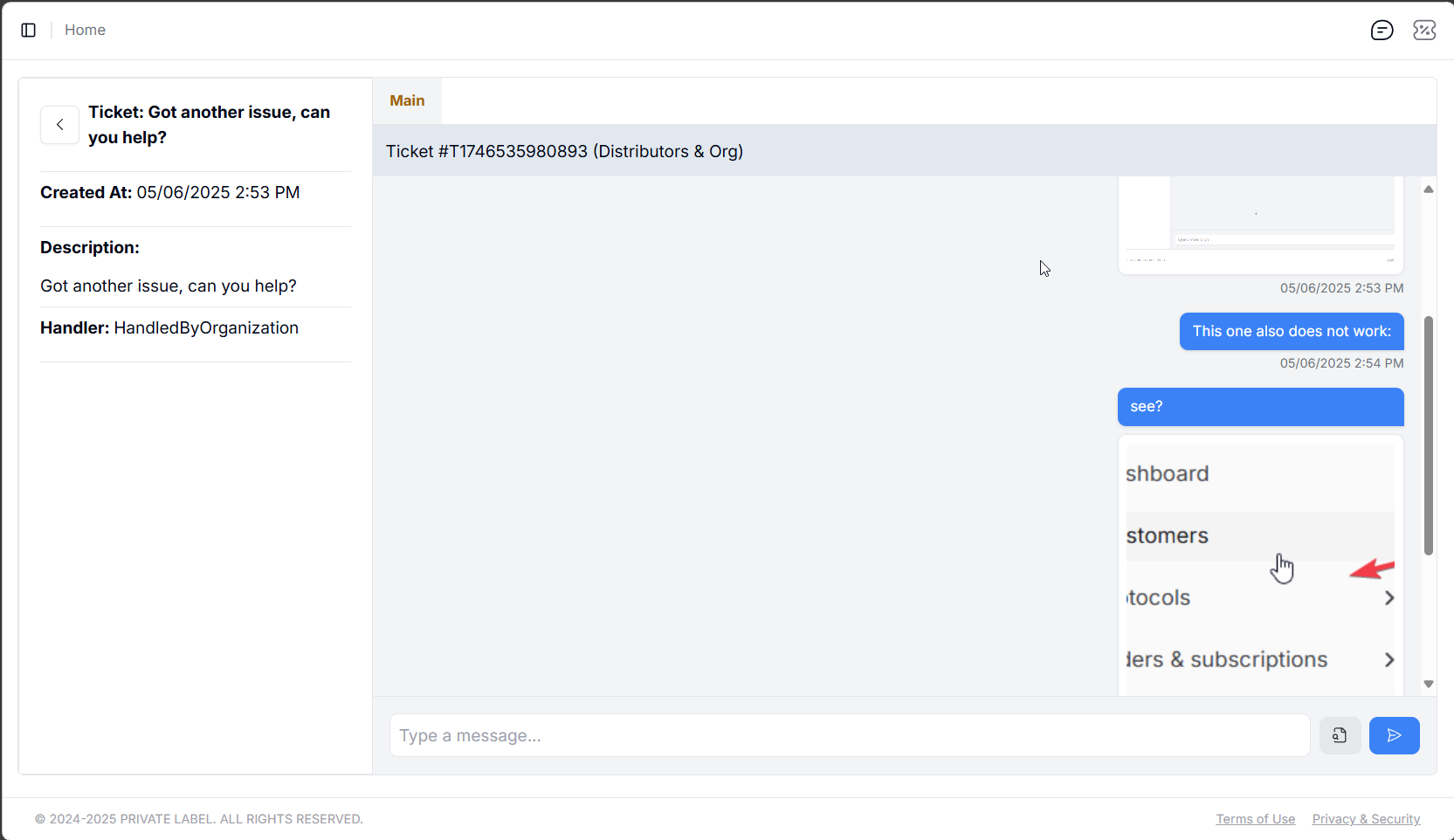
Once you have the ticket open you can use the chat window for it to send further details and messages, as well as append images and other files:
[](https://help.retailrelish.com/uploads/images/gallery/2025-05/msedge-nrw3lfgmx9.png)
# How to resolve tickets addressed to me
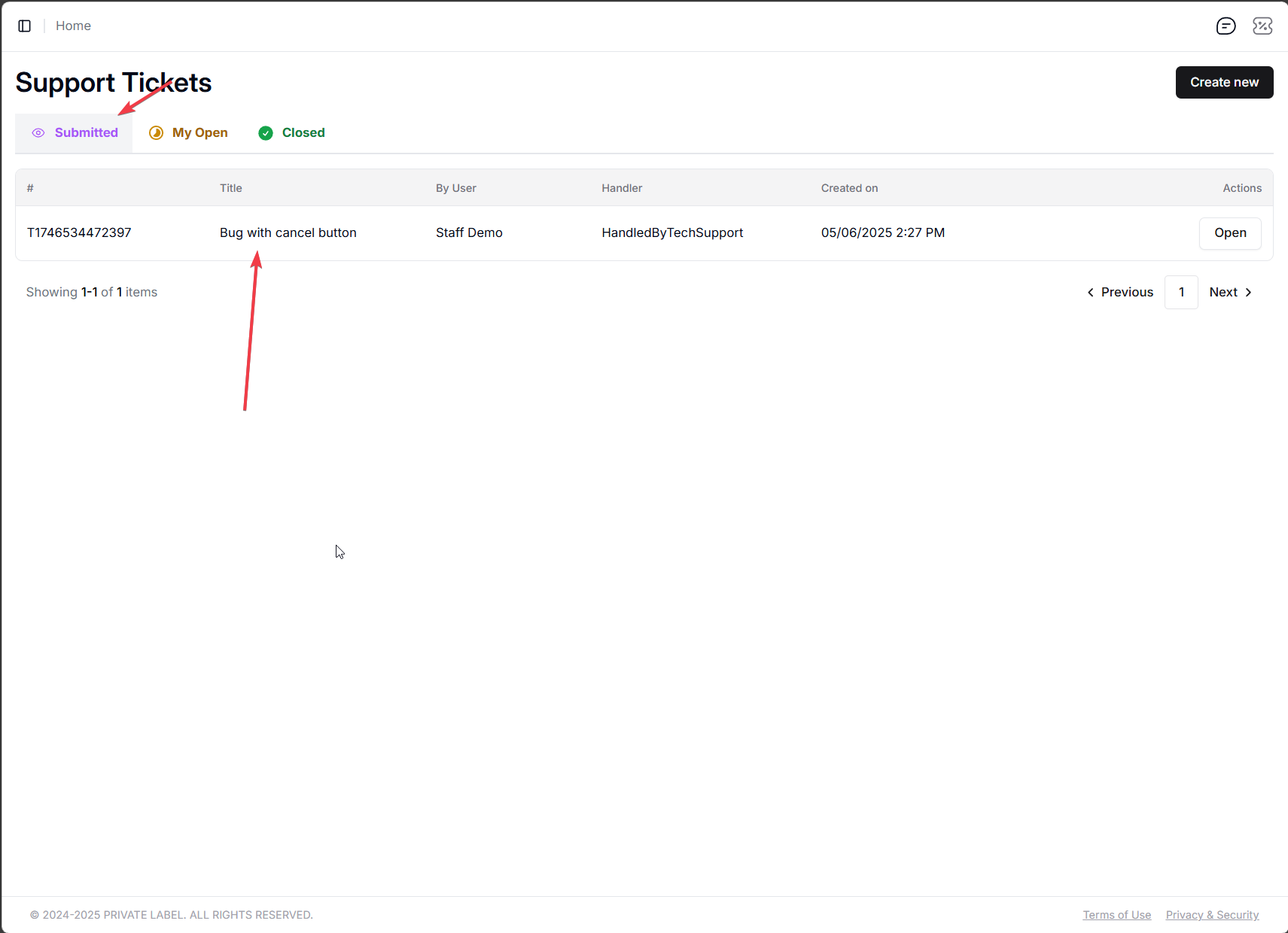
If you are handling tickets from someone else, you can see those under the "Submitted" tab in the ***Support Tickets module***.
[](https://help.retailrelish.com/uploads/images/gallery/2025-05/5tGimage.png)
You should have the options to chat with the person who opened the ticket, and either ***resolve it* **or ***escalate it.******Escalating a ticket*** means forwarding it to upper management. If you are the highest-level role in your organization, then the ticket gets forwarded to the IT support, which will loop in the dev team to look at it, and if it is a bug or the like, fix it.
[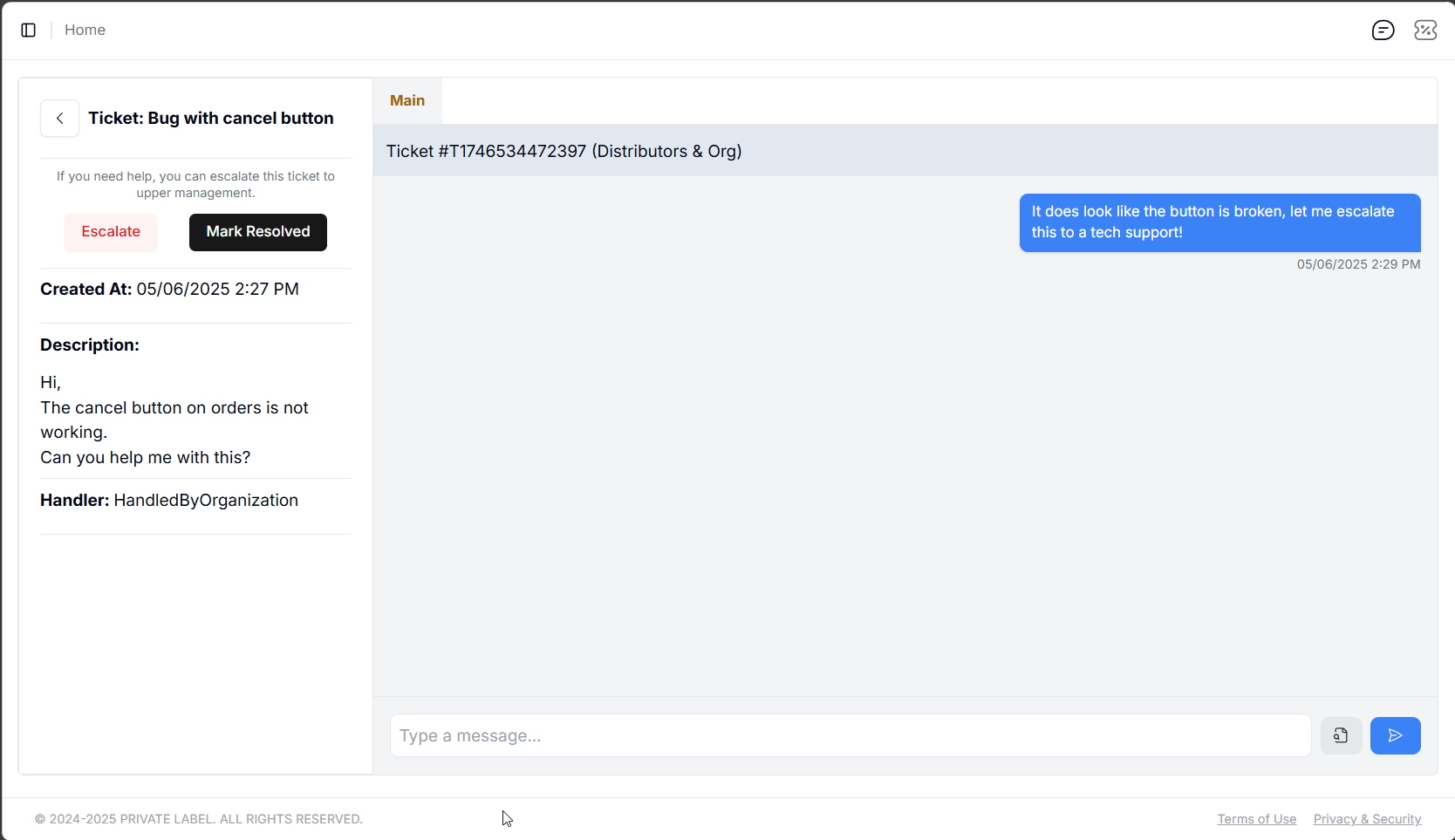](https://help.retailrelish.com/uploads/images/gallery/2025-05/msedge-e7l8sllnqy.png)
Please note that each ticket has a "Main" and "Internal" chat window:
[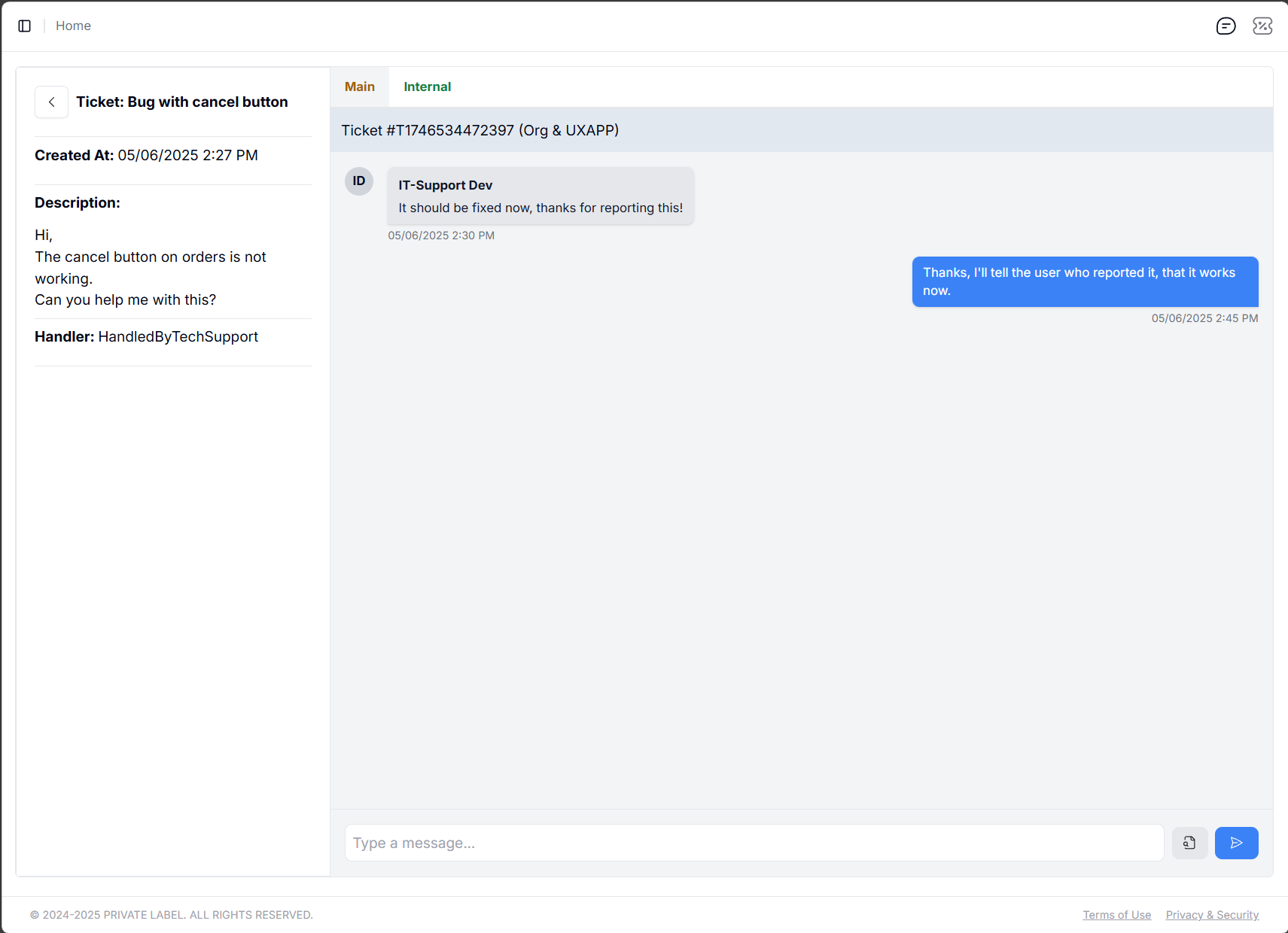](https://help.retailrelish.com/uploads/images/gallery/2025-05/Y34image.png)
[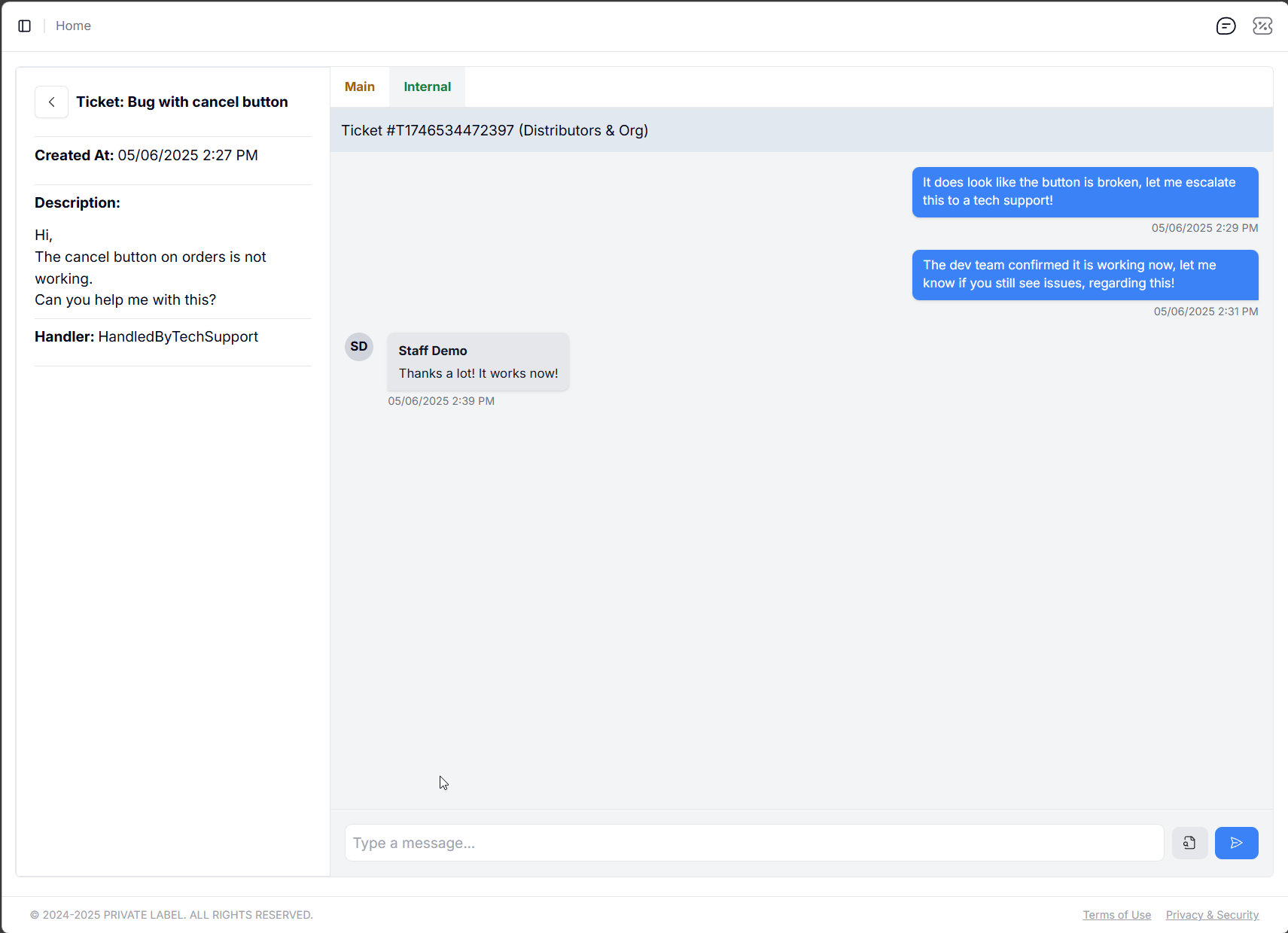](https://help.retailrelish.com/uploads/images/gallery/2025-05/XXtimage.png)
One is for communicating between the user who opened the ticket, and you, while the other tab shows up when you escalate the ticket. Messages between you and the **ticket owner **(person who opened the ticket) is visible in one tab, while the communication between you and the team you escalated it to (in the example above, that is the IT-Support team) is visible in the other one.